Using Multi-Factor Authentication (MFA) via Email
1. Enter your Email/Username and Password.
2. Click SIGN IN.
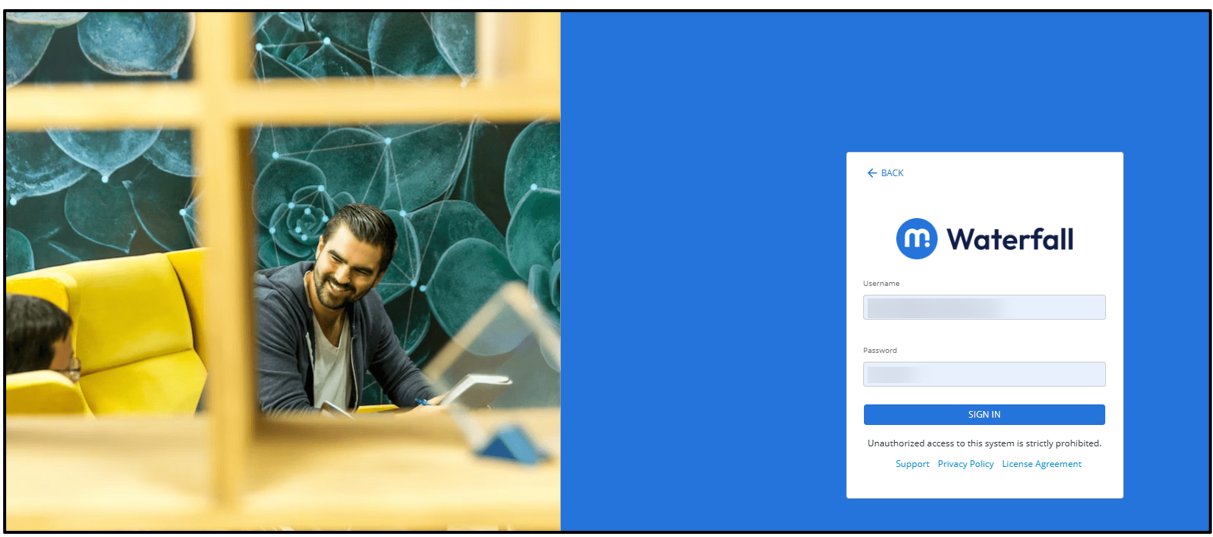
If the credentials are valid, a 7-digit alphanumeric (letters + numbers) verification code will be sent to your registered email address. This code will be valid for 10 minutes.
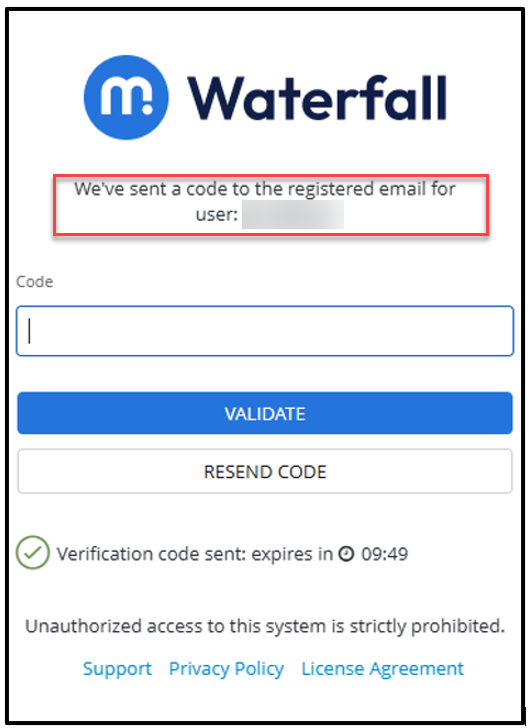
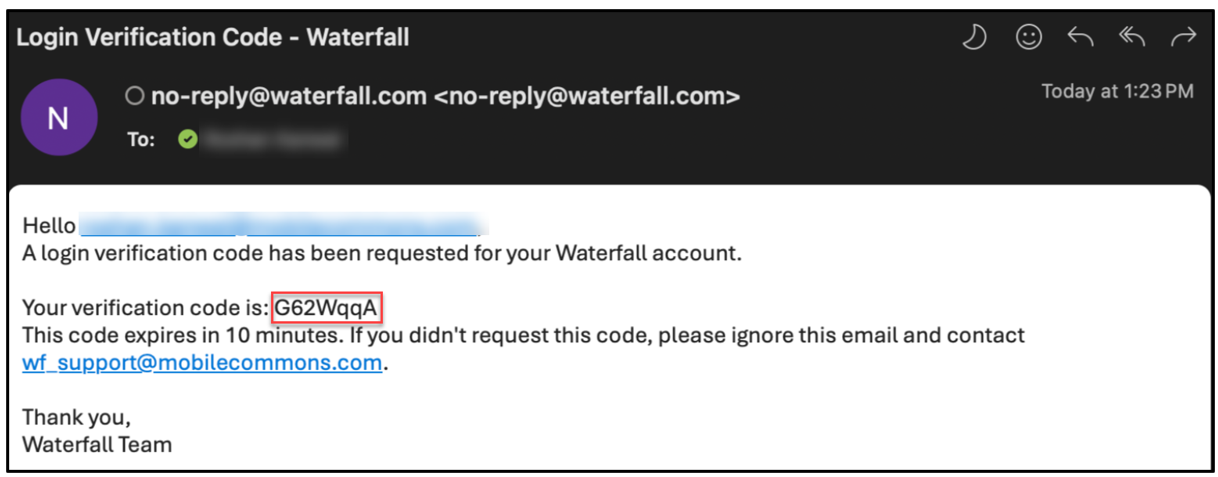
3. Enter the 7-digit alphanumeric code sent to your email in the Code field.
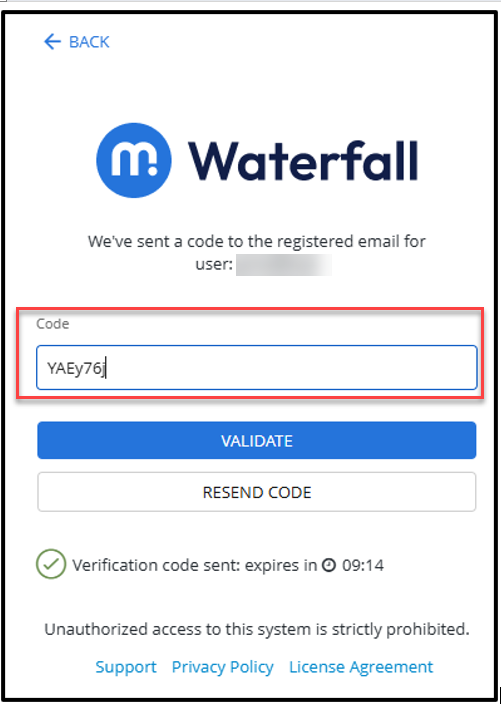
Note: The code is valid for 10 minutes. After 10 minutes, the code will expire and you need to restart the login process. Resend code works only when the timer is still active.
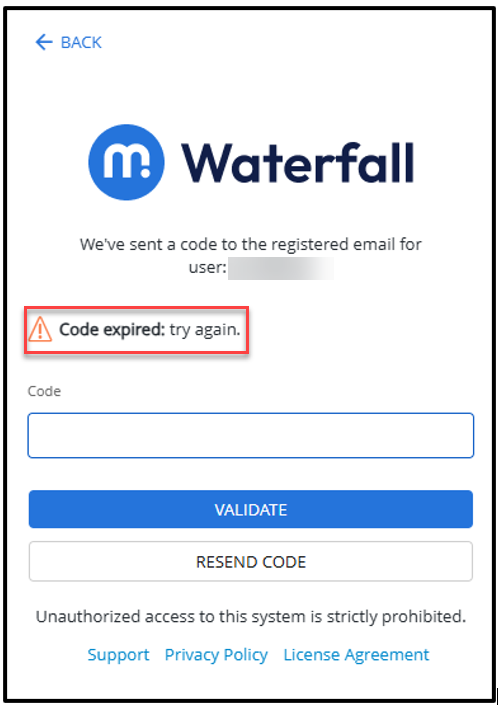
4. Click VALIDATE to verify the code. After you enter the code, it is validated against the code originally sent in the email.
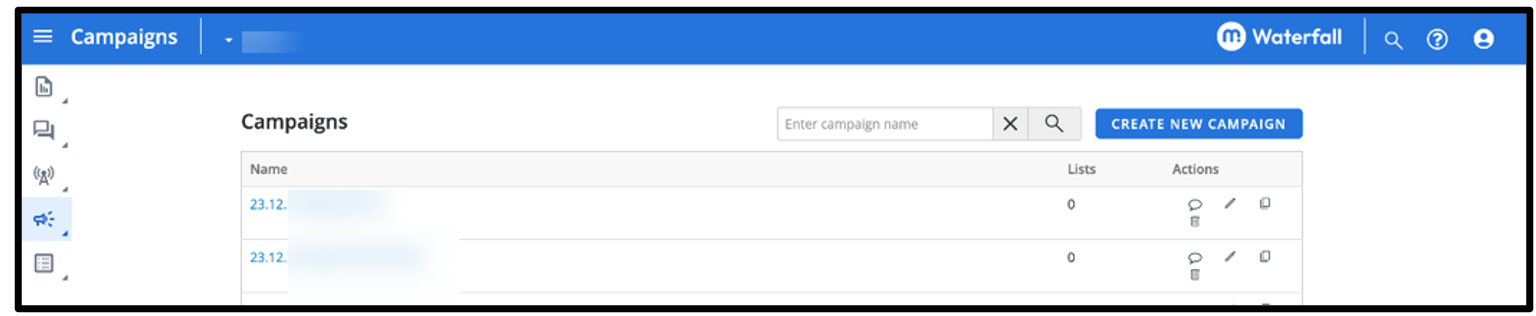
• If the code is valid, you will be logged into Waterfall (Campaigns page).
• If the code is invalid or does not match, and the following error message appears: “Invalid code: (number) attempt(s) left.”
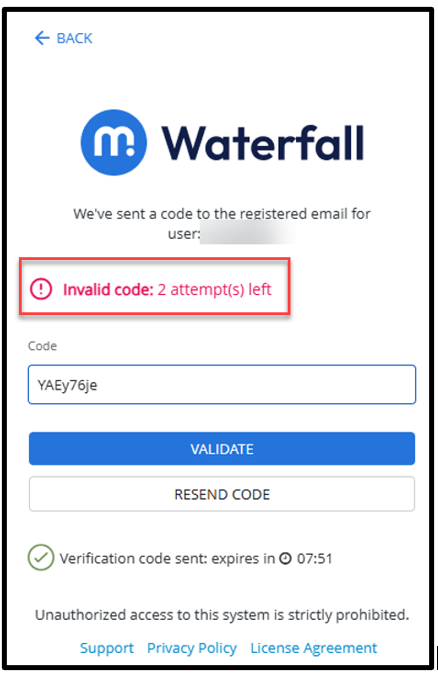
After 3 failed code attempts:
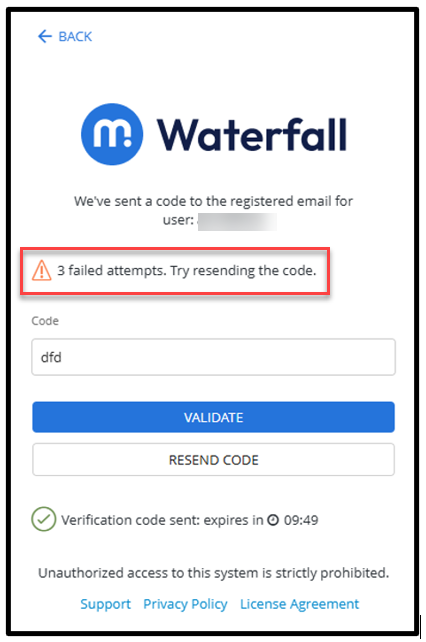
If you have exhausted all 3 code attempts and try to validate again with an incorrect code, an error is displayed:
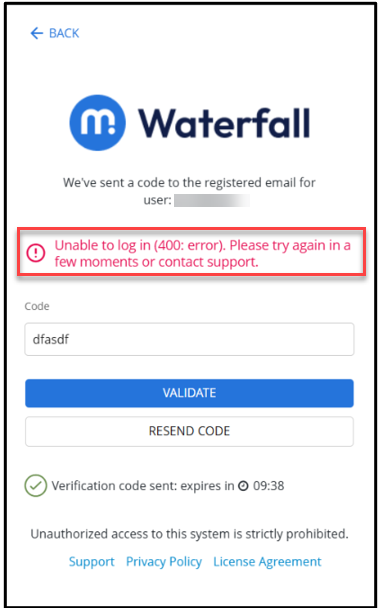
You can request a new code by clicking the RESEND CODE button within 10 minutes of the previous requested code. Previously sent codes become invalid after a resend.
Note: Each code resend provides a new 10-minute validity. Once all three resends are used, no additional resends will be available. An error message displays “3 resend attempts. Try again after 10 minutes or contact support”.
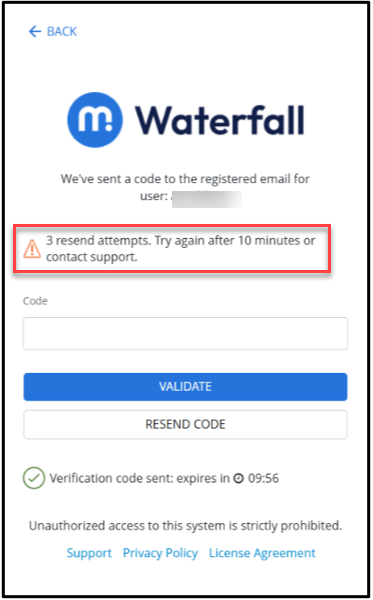
Notes:
Verification Attempts:
• Maximum of 3 attempts per code.
• After 3 failed attempts, you are prompted with “3 failed attempts. Try resending the code” if the timer is still active.
Code Resends:
• Up to 3 resends allowed within a 10-minute window.
• After using all 3 resends, you are blocked for the next 10 minutes before you can log in again.
Code Validity:
• Each code is valid for 10 minutes.
• Once expired, you restart the login process.
Key Points:
• Each resend issues a new verification code and 3 new attempts.
• Previously sent codes become invalid after a resend.
• Each verification code contains 7 alphanumeric characters (letters + numbers).
If you need further assistance, please contact wf_support@mobilecommons.com.